Fixing notion's math rendering issue
A few days before my exam, I was taking notes in Notion. I copied something from ChatGPT. It had equations. I pasted it.
Nothing rendered.
The LaTeX just sits there with dollar signs and all. To actually see the math, I have to manually convert each equation. Type /math for display blocks. Wrap inline equations with $$...$$. One by one. Forty times.
I gave up and switched to Obsidian.

Three months later, the same thing happens. This time I’m importing my own markdown notes — notes I exported from Notion itself. Notion lets you export as markdown but refuses to render the equations when you bring them back in.
I searched online. Many were complaining. No solutions. Just people hoping Notion will fix it someday.
So I built something to fix it myself.
What Notion Does (and What It Doesn’t)
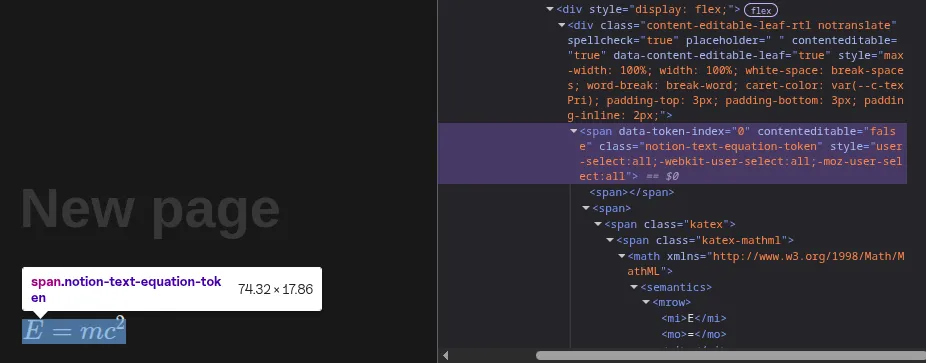
Notion supports math. Type $$E = mc^2$$ with double dollar signs and it renders inline math using KaTeX. For display equations, type /math, pick the math block from the menu, write your LaTeX in the dialog box. It works.


But Notion doesn’t understand the syntax everyone else uses.
$...$ for inline equations? Nope, just displays as text.
$$...$$ for display blocks? Same thing.
ChatGPT outputs equations this way. Obsidian uses this. Your own markdown exports from Notion have this syntax. But paste it back? Plain text.
To build this, I needed to solve it step by step.
Finding the Equations
Markdown uses two patterns:
- Inline:
$x^2$(single dollar signs, no newlines inside) - Display:
$$\int_0^\infty e^{-x^2} dx$$(double dollar signs, can span multiple lines)
A regex can match both:
const EQUATION_REGEX = /(\$\$[\s\S]*?\$\$|\$[^\$\n]*?\$)/;Breaking it down:
\$\$[\s\S]*?\$\$matches$$...$$(display equations, allowing any character including newlines)\$[^\$\n]*?\$matches$...$(inline equations, no dollar signs or newlines inside)- The
|means “or”—match either pattern
Now I can scan the page for equations. But where exactly are they in the page?
What We’re Actually Looking At
Underneath notion’s beautiful UI, it uses DOM—Document Object Model. A tree structure where every piece of text, every block, every heading is a node.
document
  └─ body
      └─ div (page container)
          └─ div (block)
              └─ div (editable content)
                  └─ text node: "$x^2 + y^2 = r^2$"
The equation text lives in text nodes. To find them, I walk through the DOM tree looking at every text node:
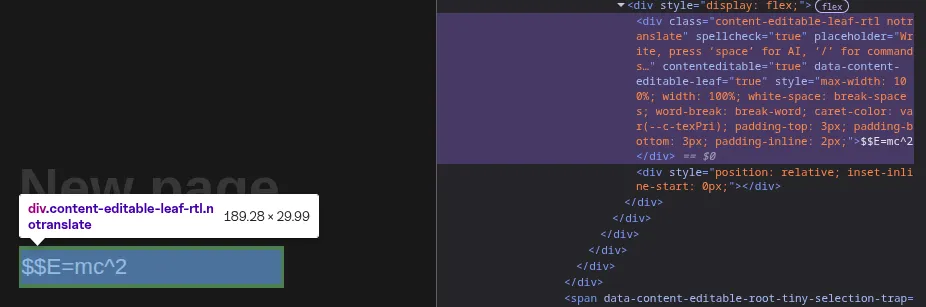
function findEquations() {
  const textNodes = [];
  const walker = document.createTreeWalker(
    document.body,
    NodeFilter.SHOW_TEXT,
    null,
    false
  );

  let node;
  while ((node = walker.nextNode())) {
    if (node.nodeValue && EQUATION_REGEX.test(node.nodeValue)) {
      textNodes.push(node);
    }
  }

  return textNodes;
}
This gives me a list of text nodes containing equations. Each node might have inline equations, display equations, or both.
Now I know where the equations are. Next problem: how do I actually convert them?
Two Different Conversions
I have two types of equations to handle.
For inline $x^2$, Notion already knows what to do if I just change the syntax to $$x^2$$. Type that, and Notion converts it automatically.
For display $$\int...$$, it’s different. Notion needs me to create a math block—a separate structural element. The only way to do that is through the /math command.
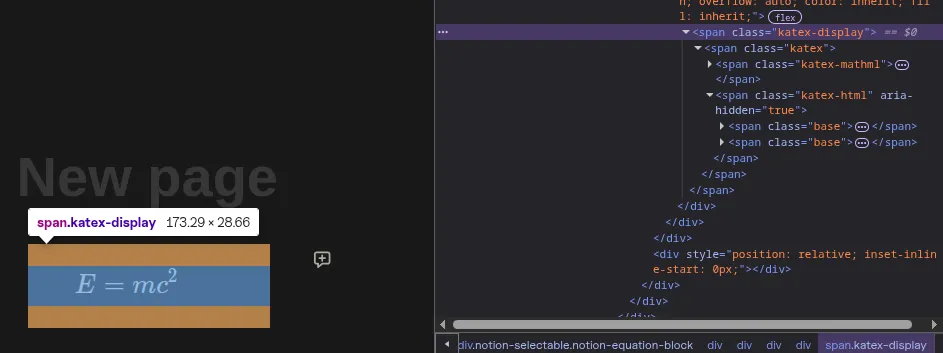
These need different approaches.
The Editable Parent Problem
Here’s where I got stuck the first time.
I found the equation text. I selected it in the DOM. I tried to replace it.
Nothing happened.
Why? Because text nodes themselves aren’t interactive. You can’t click them or focus them in a way that Notion responds to.
Look at the DOM structure again:
div (block)                  ← not editable
  └─ div (editable content)  ← THIS is what Notion watches
      └─ text node: "$x^2$"
When you click a line of text in Notion, you’re not clicking the text itself. You’re clicking the block that contains it. That block becomes active. Then you can edit the text inside.
Notion marks these editable blocks with data-content-editable-leaf="true".
So before I can do anything with the equation, I need to:
- Find the equation text (in a text node)
- Find its editable parent (the block Notion controls)
- Click that parent to activate it
- Then work with the text
Finding the editable parent means walking up the tree:
function findEditableParent(node) {
  let parent = node.parentElement;
  while (parent &&
         parent.getAttribute("data-content-editable-leaf") !== "true") {
    parent = parent.parentElement;
  }
  return parent;
}
Start at the text node. Go up to its parent. Not editable? Go up again. Keep going until we find the editable block.
No editable parent? Skip this equation—we can’t interact with it.
Selecting the Exact Text
Now I can click the editable block to activate it. But I need to select the specific equation text inside it.
Just changing the text directly won’t work. Here’s why:
Notion uses React. React keeps its own version of what the DOM should look like. When you type, React calculates what needs updating and patches the real DOM.
If I bypass React and change text directly, React doesn’t know. The display goes out of sync with what Notion thinks is there.
I need to select the text the way a person would using the browser’s selection API:
function selectText(node, startIndex, length) {
  const range = document.createRange();
  range.setStart(node, startIndex);
  range.setEnd(node, startIndex + length);

  const selection = window.getSelection();
  selection.removeAllRanges();
  selection.addRange(range);
}
This creates a DOM Range. It’s the same thing that gets created when you click and drag to select text. Then I set it as the active selection.
Now Notion knows I’ve selected something. Its event handlers fire. It’s ready to respond to my next action.
Converting Inline Equations
For inline equations like $x^2$, the conversion is straightforward:
- Select the equation text (including the dollar signs)
- Replace it with
$$x^2$$usingdocument.execCommand("insertText")
const fullEquationText = `$$${latexContent}$$`;
document.execCommand("insertText", false, fullEquationText);
Why execCommand? Because it fires the same input events that typing would. Notion listens for these events. It sees the $$..$$ pattern and converts it automatically—just like it would if I’d typed it myself.
The equation becomes rendered math. Done.
Converting Display Equations (The Hard Part)
Display equations are trickier. I can’t just change the syntax. I need to create a new block — a structural element in Notion’s page.
The only way to do that is through the interface. Type /math. Select from the menu. Fill in the dialog.
So that’s what the code does:
async function convertDisplayEquation(latexContent) {
  const selection = window.getSelection();

  // Step 1: Delete the selected equation text
  selection.deleteFromDocument();
  await delay(TIMING.FOCUS);

  // Step 2: Type /math to trigger the command palette
  document.execCommand("insertText", false, "/math");
  await delay(TIMING.DIALOG);  // Wait for command palette to appear

  // Step 3: Press Enter to select the math block option
  dispatchKeyEvent("Enter", { keyCode: 13 });
  await delay(TIMING.MATH_BLOCK);  // Wait for dialog to open

  // Step 4: Insert the LaTeX content into the active input field
  if (isEditableElement(document.activeElement)) {
    insertTextIntoActiveElement(document.activeElement, latexContent);
  } else {
    console.warn("Could not find math block input");
  }

  await delay(TIMING.DIALOG);

  // Step 5: Check for KaTeX errors
 ...

  await delay(TIMING.POST_CONVERT);  // Wait for Notion to process
}
Each step waits. Why?

Because Notion’s UI is asynchronous. Type /math and the command palette doesn’t appear instantly. It takes a few milliseconds. Press Enter and the dialog doesn’t open instantly. React needs time to render it.
The delays — 50ms for focus, 100ms for dialogs, 300ms after conversion — aren’t arbitrary. They’re the minimum I found through trial and error that let Notion’s updates finish before the next step.
Handling Errors
What if the LaTeX is invalid?

Notion shows an error alert in the dialog. The “Done” button won’t work. We’d be stuck.
So after inserting the LaTeX, I check:
const hasError = document.querySelector('div[role="alert"]') !== null;

if (hasError) {
  dispatchKeyEvent("Escape", { keyCode: 27 });
}
Error detected? Press Escape to close the dialog. Move on to the next equation.
The invalid equation stays as text. Notion shows the error message. But the converter doesn’t freeze. It keeps going.
What if the selection doesn’t match?
Before converting, verify the selection actually contains the equation text:
const selection = window.getSelection();
if (!selection.rangeCount || selection.toString() !== equationText) {
  console.warn("Selection failed or doesn't match");
  return;
}
This catches race conditions. Sometimes Notion re-renders between scanning and selection. The node we found is gone. The selection fails.
Skip it. Rescan. Try again.
Hiding the Machinery
During conversion, dialogs flash on screen. It’s distracting.
Solution: inject CSS to hide them temporarily.
function injectCSS(css) {
  const style = document.createElement("style");
  style.id = "notion-math-converter-hide-dialog";
  style.appendChild(document.createTextNode(css));
  document.head.appendChild(style);
}

injectCSS(
  'div[role="dialog"] { opacity: 0 !important; transform: scale(0.001) !important; }'
);
The dialogs still exist. Notion’s logic still runs, but they’re invisible.
When conversion finishes, remove the injected style:
const styleTag = document.getElementById("notion-math-converter-hide-dialog");
if (styleTag) {
  styleTag.remove();
}
The Main Loop
Now all the pieces work. Time to put them together.
The main loop is simple:
while (true) {
  const equations = findEquations();

  if (equations.length === 0) {
    break;  // Done
  }

  const node = equations[0];
  const match = node.nodeValue.match(EQUATION_REGEX);

  if (match && match[0]) {
    await convertSingleEquation(node, match[0]);
  }
}- Scan the page for equations
- Take the first one
- Convert it
- Wait for the DOM to settle (300ms)
- Start over from step 1
Why take one at a time instead of batch processing?
Because converting one equation often makes Notion re-render nearby content. The nodes in my list might not exist anymore. Stale references.
Rescanning from the top each time is slower but safer. When no equations match, we’re done.
Try It
The extension is on GitHub: github.com/voidCounter/noeqtion
Load it as an unpacked extension. Open a Notion page with LaTeX equations. Press Ctrl+Alt+M.
Watch your equations convert.
Or look at content.js to see how it works. The whole thing is ~300 lines. No dependencies.
Thanks for reading!